Browse Guides and Sections
NFC Utils Guide
Read an ePassport
Scan the machine readable zone with your camera, then tap Unlock to read the chip. NFC Utils shows the holder data, images, and separate verification results on your device.
What the Chip Holds

Look for this symbol on the passport cover. It marks a travel document with a contactless chip.
Its chip follows ICAO Doc 9303 and carries the holder details from the printed photo page, a face image, and the issuing country’s signature over its data. Some countries also store a signature image and additional document details.
The app identifies the travel document before asking for the key. Holder data stays locked until you supply the fields from the printed page.
The First Tap
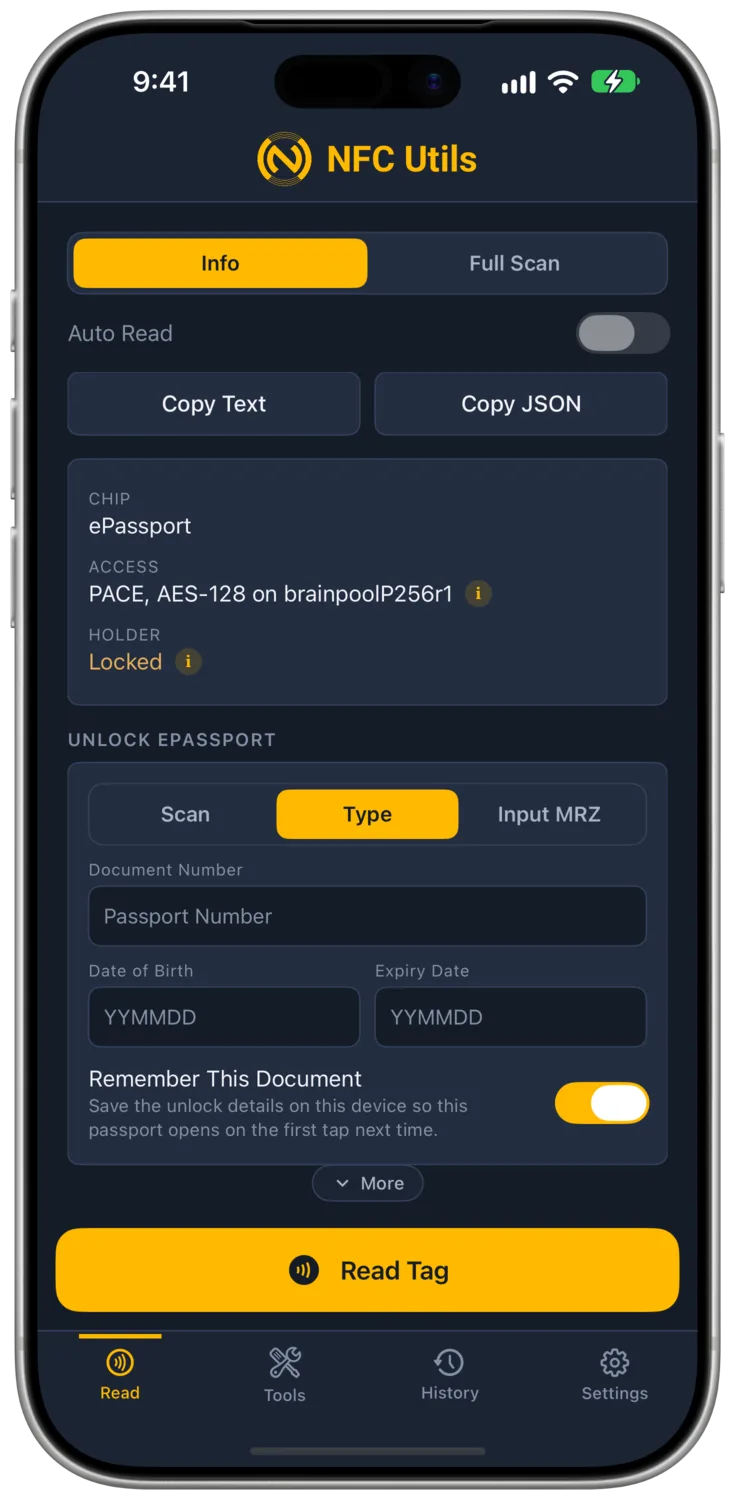
Start a normal read and hold the passport at your phone’s NFC antenna or a supported USB or ACS Bluetooth reader. iPad and Mac need an external reader. The first tap identifies ePassport and shows Holder as Locked. Access shows the method the chip offers. This first result does not contain the holder’s name, number, or photo.
The Unlock ePassport card appears under the locked result. Fill in the three fields from the Scan, Type, or Input MRZ tab, then tap Unlock, hold the passport to the antenna again, and keep it still until the read finishes. A remembered document unlocks on its first tap.
Scan the Printed Page
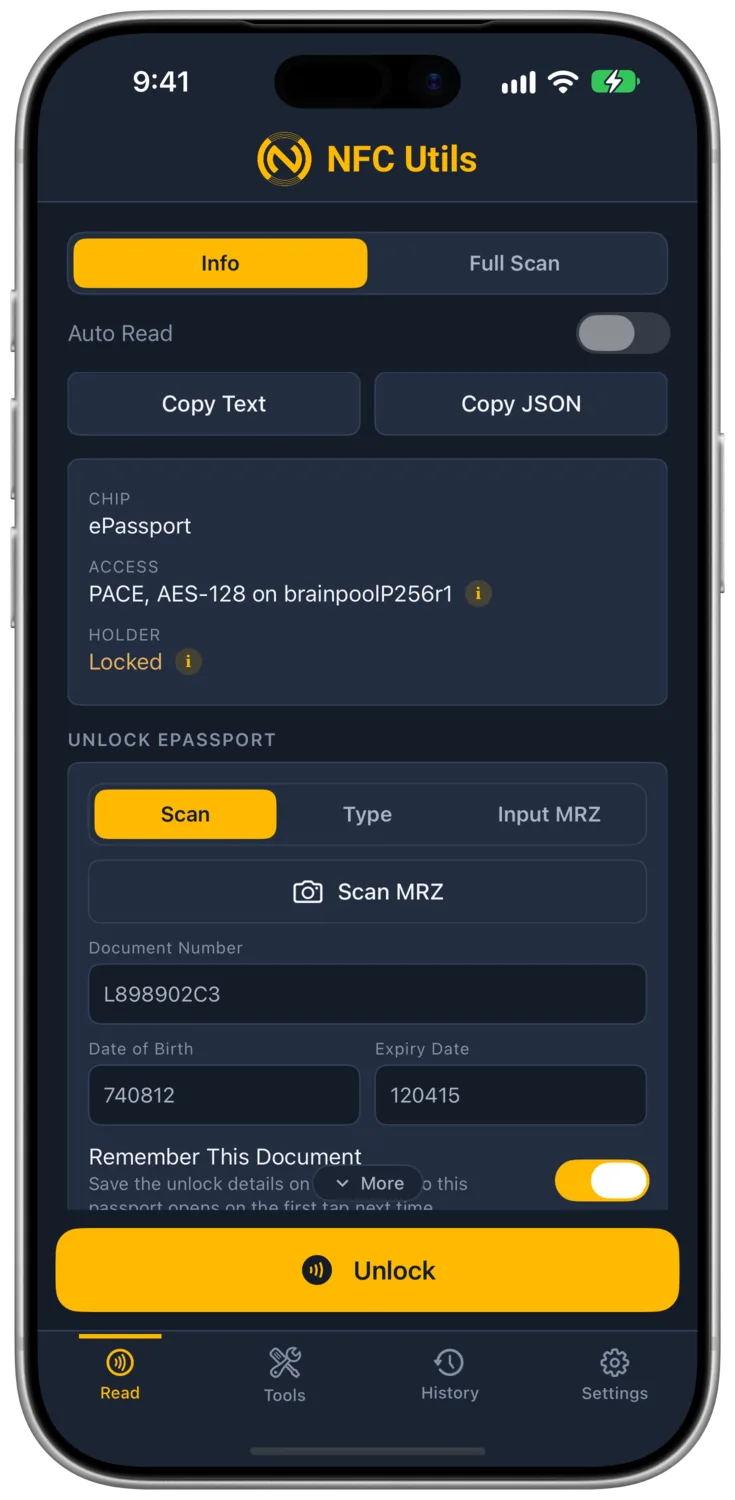
Open Scan in the Unlock ePassport card and tap Scan MRZ. Hold the photo page inside the frame. Optical character recognition (OCR) reads the machine readable zone from the camera image on your device.
The app accepts a reading only when the same zone, with valid check digits, appears on at least three frames and clearly wins over any other reading. It fills the document number, date of birth, and expiry date. The fields become read-only, and the chip read waits until you tap Unlock.
iPhone and iPad scan with the back camera, and Android phones use the camera as well. On Mac, the app uses the default camera and shows a Camera picker when more than one camera is available, including Continuity Camera.
Unlock With the Printed Page
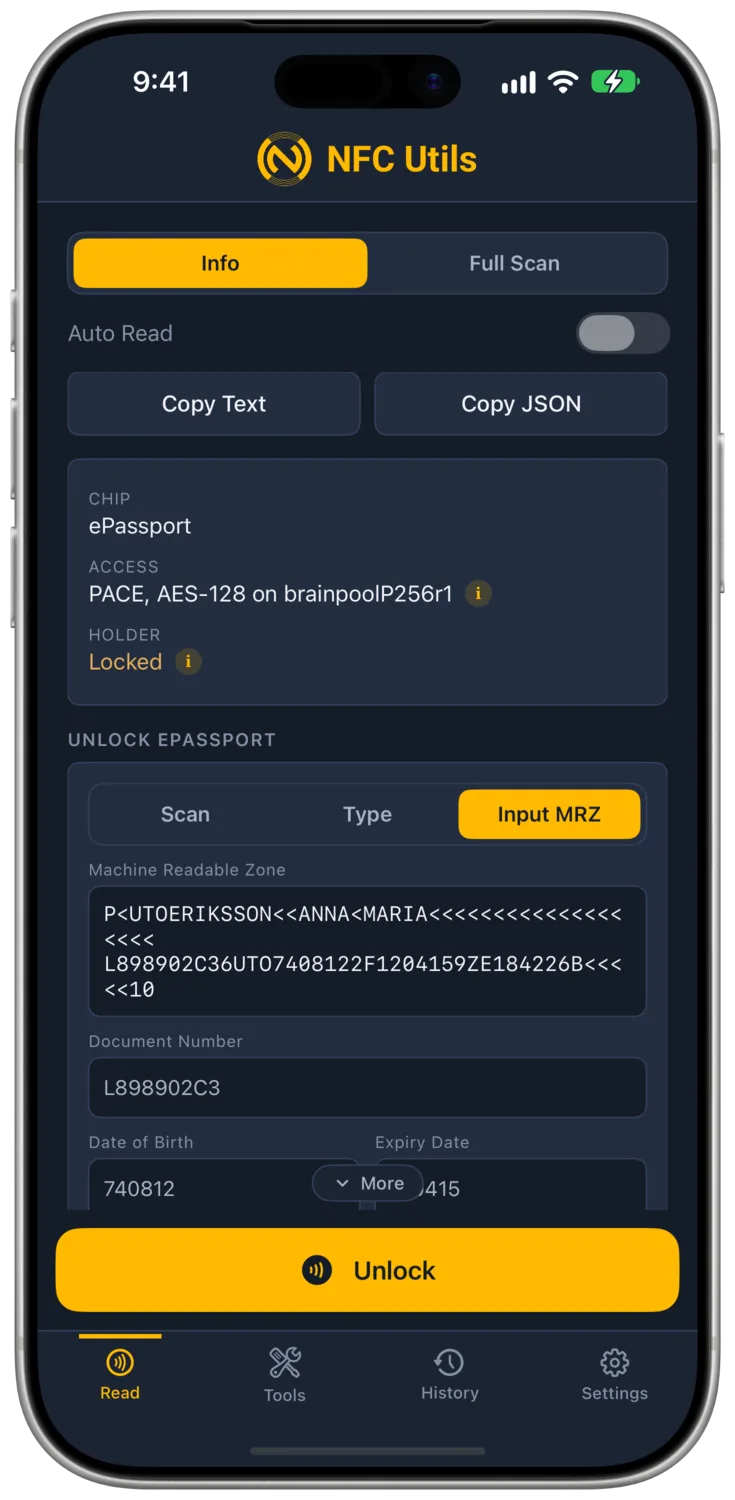
The machine readable zone is the two lines of letters, digits, and chevrons at the bottom of the photo page. The document number, date of birth, and expiry date in that zone provide the key. The Unlock ePassport card offers three tabs for supplying them.
- ScanTap Scan MRZ to fill the three fields with the camera. Review the captured fields, then tap Unlock to start the chip read.
- TypeEnter the Document Number, Date of Birth, and Expiry Date exactly as printed. Dates use six digits in year, month, day order.
- Input MRZPaste or type the zone into the Machine Readable Zone field. You can provide the second line or both lines, with or without chevrons. The app finds the three fields and checks their digits.
In Input MRZ, a hint confirms when the three fields and their check digits match. If a check digit does not match, the hint names the field to compare with the printed page.
Tap Unlock, then present the passport again. The app uses BAC or PACE with the printed fields to open an encrypted session. There is no PIN or lockout. A wrong key is refused and the chip remains usable.
Remembered Documents
Remember This Document is on by default. After a successful unlock, the app keeps the three fields, a label made from the holder name and issuing state, and a timestamp. Later taps try the remembered keys until the chip accepts one. A wrong key does not lock the chip.
On iPhone, iPad, and Mac, the list is stored in a device-only keychain item that does not sync through iCloud. On Android, it is encrypted in app storage with a key held in the Android Keystore.
Turn off Remember This Document before unlocking to leave that document out of the list. Settings → Remembered Documents lists saved entries with a Forget action. History separately stores complete readouts, including images, on the device. Forget removes the remembered key; it does not remove a History entry.
No passport data is sent to a server. The country-root master list is bundled with the app, so the signer check runs on the device too.
Read the Results
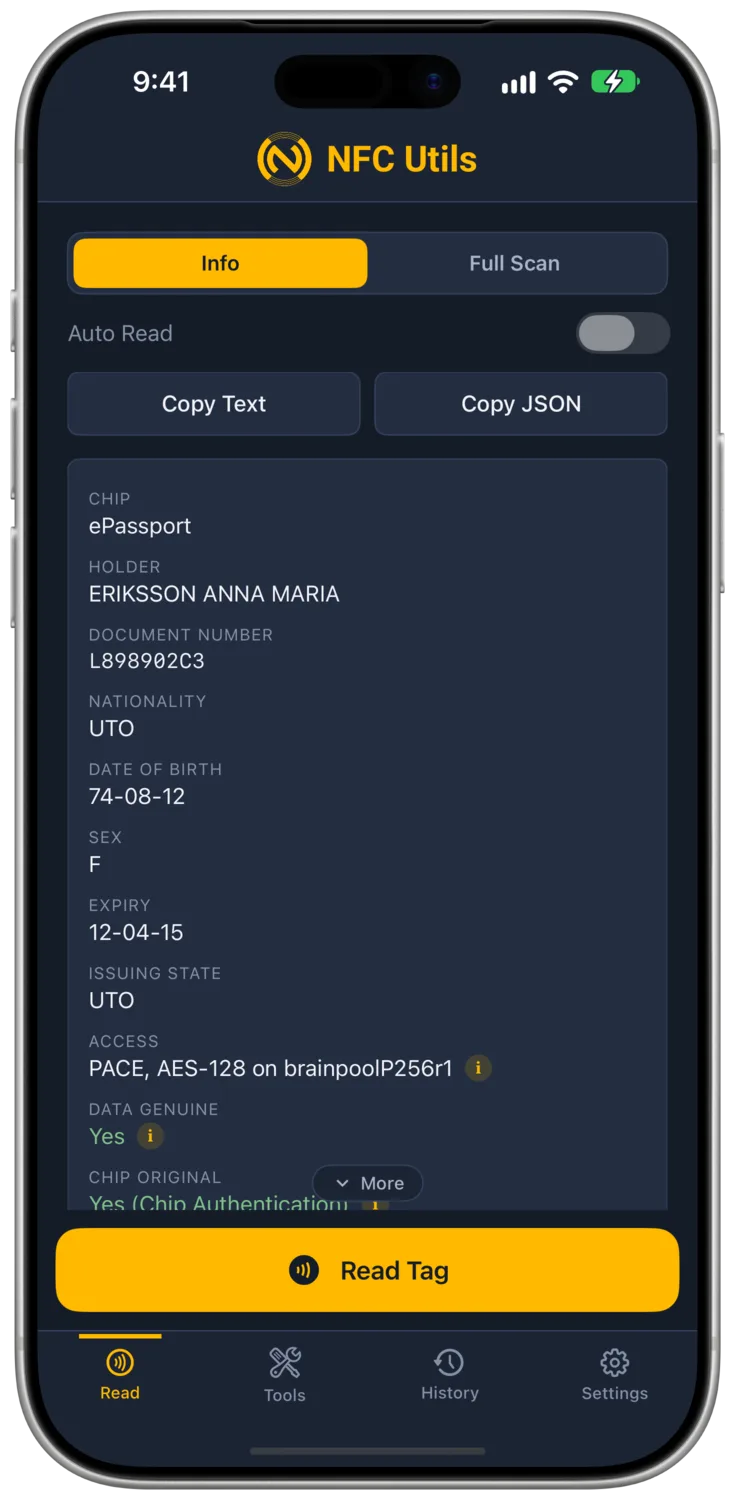
The rows answer separate questions about access, the signed data, the chip, and the signer. Read them together. A copy of the signed files can pass Data Genuine. Chip Original asks for separate proof that the chip holds its private key.
- AccessNames the method that unlocked the chip. BAC derives its session keys from the printed fields and uses 3DES. PACE uses those fields in a key exchange and shows the cipher and curve used for the session.
- Data GenuineYes means every file read matches its hash in the signed security object and that the signature verifies. No means the file comparison or signature check failed. Not Checked means the check did not run, often because the read stopped early.
- Chip OriginalYes (Active Authentication) means the chip signed a fresh challenge with its private key. Yes (Chip Authentication) means a fresh key exchange and protected response proved possession of the chip’s private key. No means the attempted check failed. Not Checked means an offered check did not run. No Check Offered means the document supplies neither check.
- SignerVerified to names the country root reached through the bundled master list. Issuer Not in List means that root is absent from the list, not that the passport is fake. Not Checked means the chain comparison did not run.
The bundled roots come from Germany’s Federal Office for Information Security. The current list is dated May 28, 2026, and contains 588 certificates from 112 countries. It is refreshed with each app release. A missing root limits the Signer result even when the file signature verifies.
Images and Export
Images shows the face and any signature image stored by the issuer. A signature image can be a placeholder when the holder is too young to sign. The image itself is part of the signed chip data.
Many issuers store images as JPEG 2000. NFC Utils converts them for viewing. Export Image saves the original file, which may need a viewer that supports JPEG 2000.
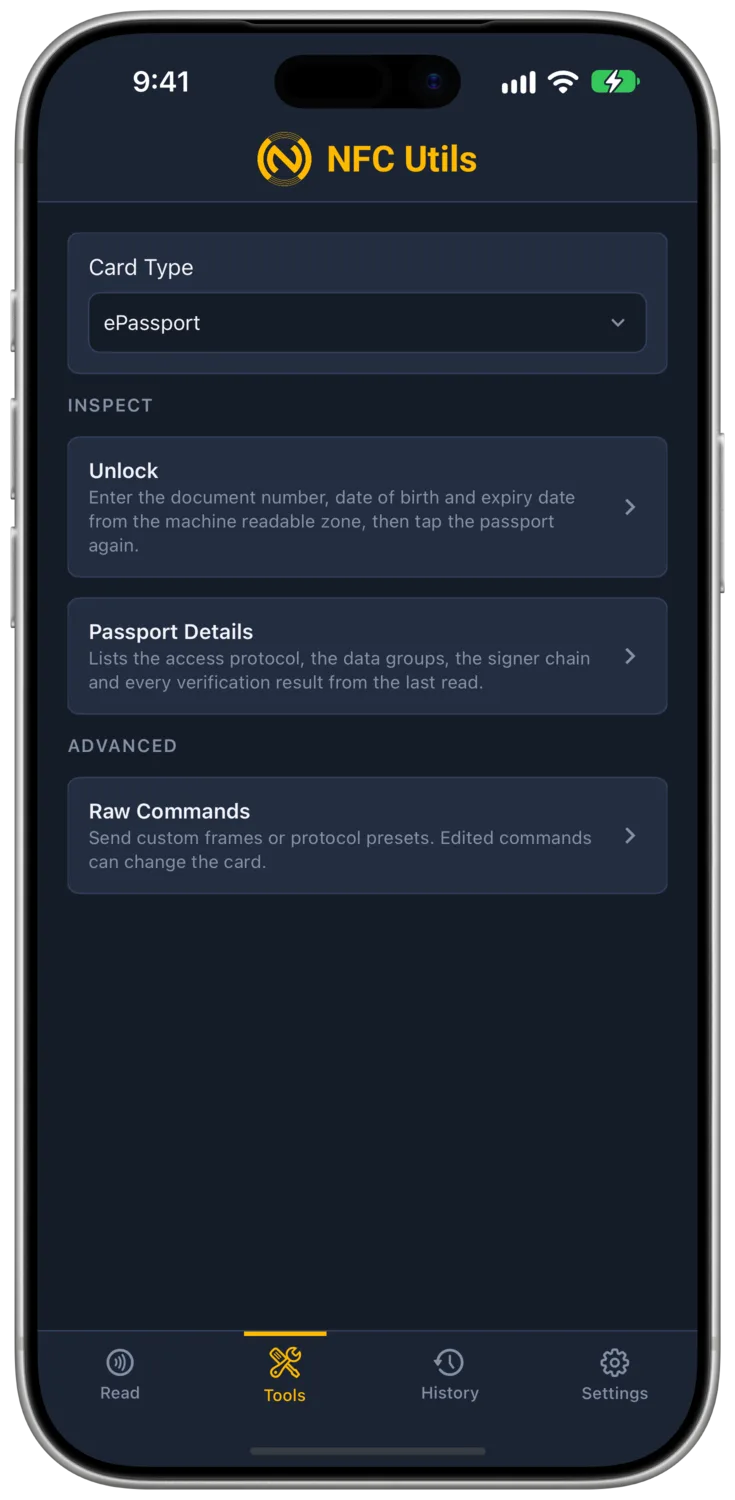
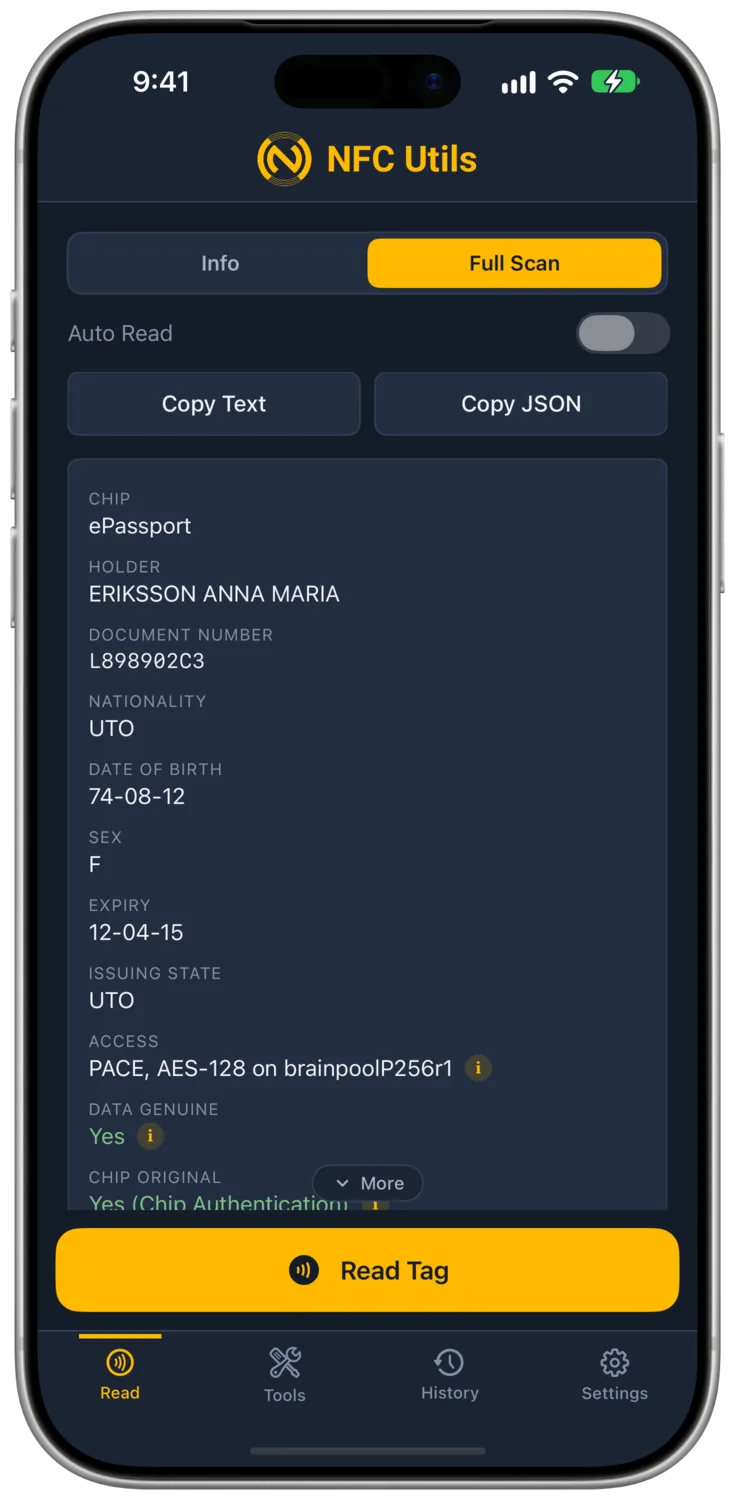
Full Scan adds document details, security information, data groups, and technology rows that the Info card has not already shown. Reading a passport selects the ePassport card type in Tools, or you can pick ePassport under Card Type. Its Passport Details tool opens the access protocol, data groups, signer chain, and verification results from the last read.
What the Read Cannot Establish
- FingerprintsExtended Access Control protects fingerprint groups. Reading them requires a government terminal certificate. NFC Utils skips them.
- Documents Without a Clone CheckSome countries provide neither Active Authentication nor Chip Authentication. The United States document tested during development is one example. Data Genuine can still pass, but copied signed files do not prove the chip is original.
- Document CoverageDevelopment reads covered documents from Russia, the United States, Canada, and Panama. Support for ICAO 9303 does not guarantee a successful read of every passport or protocol variant.
- Camera ReadingScan MRZ reads only the printed zone and fills the three fields. It accepts no partial reading and needs camera access. Valid check digits show that the zone is consistent, not that the printed page is genuine.
The results describe the checks that ran. They do not verify the person presenting the document or replace a border check.
Keep the Chip in the Field
Keep the passport still while the app reads its files. The scan sheet shows a progress bar of ten squares during the read. If the photo page gives no response, try the back cover. The United States passport tested during development keeps its chip there.
A dropped link ends the encrypted session. When the app can reconnect, it unlocks again and resumes from the bytes already read. If recovery fails, hold the passport steady and start another read.
Supported USB and ACS Bluetooth readers keep the passport on the antenna during the unlock, so a new document can be read in one pass. iPad and Mac require an external reader. Use the reader guide to choose a compatible connection.
The ePassport Tools profile also offers Raw Commands with the Select ePassport Application preset. That preset selects the public application; it does not unlock holder data.