
Browse Guides and Sections
Start Here
Card Groups
References
NFC Utils Guide
Settings
Choose a reader and set how NFC Utils looks, saves readouts, shares files, and confirms changes to tags.
Card Reader
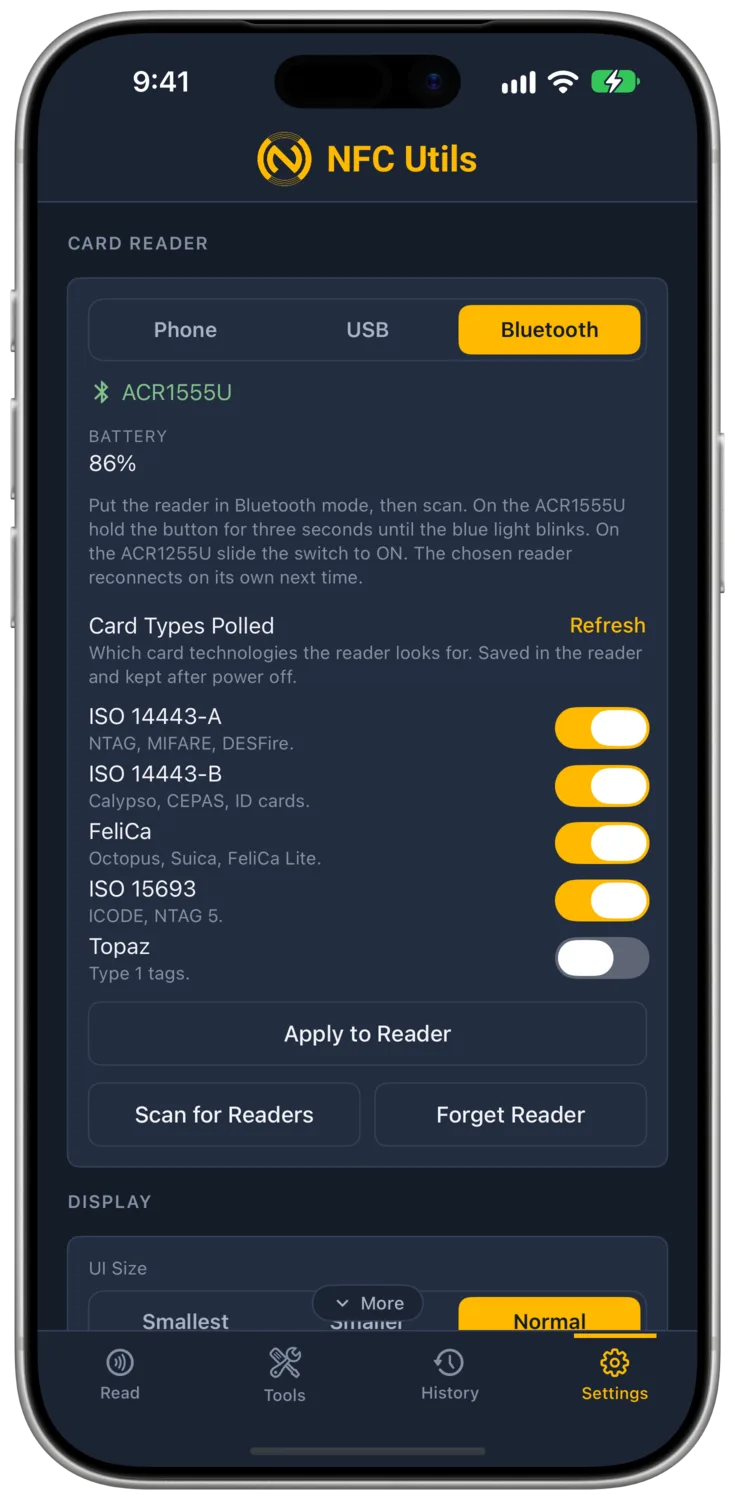
Phones with NFC offer Phone, USB, and Bluetooth. iPad and Mac have no NFC antenna, offer only USB and Bluetooth, and default to USB. A source change takes effect at once and stops the others. Switching from Bluetooth to Phone or USB stops reading through the Bluetooth reader but keeps it connected. Switching back reuses the connection without scanning or pairing. If the link has dropped, the app looks for the chosen reader and reconnects when it appears. iPhone and Android phones start on Phone, use a chosen external reader once linked, and return to Phone if its link drops. iPad and Mac have no fallback.
- Phone The status reads “Built-in NFC ready”; errors appear in red below it. On Android, “NFC is turned off” and “No NFC on this device” can also appear. Enable NFC in system settings when disabled.
- USB On iPhone, iPad, and Mac, USB uses readers supported by the system’s CCID driver, including compatible ACS and OMNIKEY models. The status shows the model name or “No reader attached”. Use a USB-C data cable; a reader in Bluetooth mode only charges.
- Check Reader Check Reader looks for a USB reader again. Detection is automatic; removal is noticed within half a second. To leave Bluetooth mode on the ACR1555U, hold its button for three seconds; on the ACR1255U, set the switch to OFF.

- Bluetooth Bluetooth supports ACS ACR1555U and ACR1255U-J1. On the ACR1555U, hold the button for three seconds until the blue light blinks; on the ACR1255U, set the switch to ON. The chosen reader reconnects next time.
- Bluetooth Status “No reader chosen” means no reader is selected. Once you choose one, the status shows its model when connected, “Connecting to” or “Looking for” with the reader’s name while it links, or the name followed by “(not connected)”.
- Battery This row shows the connected reader’s battery percentage, or On USB Power when it uses USB power.
- Scan for Readers Scan for Readers lists supported Bluetooth readers under Readers in Range. Tap a row to connect; it shows Connect, Connecting…, or Connected. The scan button reads Scanning… or Connecting… while busy; on Android, scanning first asks for Bluetooth permission.
- Forget Reader Forget Reader disconnects and forgets the chosen Bluetooth reader. This is the only disconnect control.
- Bluetooth Errors If Bluetooth is off, turn it on; if permission was denied, allow Bluetooth for NFC Utils in Settings. Connection errors name the reader and reason; check its blinking blue light, then tap its row again. If the reader stops responding, the app reports Reconnecting… and scans again.
On iPhone, iPhone Duo, iPad and Mac, Auto Read needs a USB or Bluetooth reader that can read on its own. On the Read page, use AUTO on iPhone Duo, Android foldables and iPad on its side, or the Auto Read switch on iPhone, upright iPad, Mac, and Android phones and tablets. Android also supports Auto Read with the device’s own NFC. See Readers for connection troubleshooting.

Card Types Polled
These controls appear with a connected Bluetooth reader or an attached USB reader. The switches choose the card technologies the reader polls. On iPhone, iPad, and Mac, USB cannot access these settings; link over Bluetooth to change them. On Android, USB can load and apply them. Readers that do not expose polling settings say so.
- Load Load reads the reader’s polling settings. The button becomes Refresh once the settings have loaded.
- ISO 14443-A Enable this switch to poll for NTAG, MIFARE, and DESFire.
- ISO 14443-B Enable this switch to poll for Calypso, CEPAS, and ID cards.
- FeliCa Enable this switch to poll for Octopus, Suica, and FeliCa Lite.
- ISO 15693 Enable this switch to poll for ICODE and NTAG 5. It appears only on readers that report support, including the ACR1555U family.
- Topaz Enable this switch to poll for Type 1 tags.
- Apply to Reader This button applies the switches you changed; “Saved in the reader.” confirms the change. Settings stay in the reader after power off and can affect other apps that use it.
- Reader Settings This button opens Settings from the notice in FeliCa tools when FeliCa polling is off on the linked reader.
- Polling Errors A missing answer produces “The reader did not answer the polling query.” A refused change produces “The reader did not accept the setting.”
Language
On Android, Language follows Haptics.
- System System follows the device’s preferred languages and shows the resolved language, such as System (English). If none is supported, it uses English. A Ukrainian device language uses Russian.
- Language Choice Choose English, 中文, Русский, Español, Français, 한국어, Português, or 日本語, each shown with a flag. A change redraws the whole interface in that language.
- Saved Readouts Stored readouts and History keep English field names in Copy Text, Copy JSON, and exports.
UI Size
UI Size is under Display. On iPhone, iPad, and Android, smaller sizes reduce text, spacing, padding, and the scan button; text stays at least 11 pt. On Mac, UI Size scales text and controls in every window.
- Smallest Choose this for the smallest size.
- Smaller Choose this for a size between Smallest and Normal.
- Normal This is the default size.
NFC Utils is always dark. There is no appearance setting.
Haptics
Haptics appears only on phones. It is hidden on iPad and Mac.
- Haptic Feedback Haptic Feedback is enabled by default. It plays one tick when a card is detected, two when a reader connects, one pulse on success, and three on failure. Turning the switch on plays a success pulse; turning it off plays nothing.
- Strength Choose Low, Medium, or High; Medium is the default. The control is dimmed while Haptic Feedback is disabled. Changing the strength plays a success pulse.
History
- Save History Save History is enabled by default. It keeps a local log of tags you read and write, with the full readout of each read. On iPhone, iPad, and Mac, device backups can include the log. Turning it off stops new entries and keeps existing ones.
See History for saved readouts.
Remembered Documents
This section appears only when at least one passport is remembered. Unlock details stay on this device. iPhone, iPad, and Mac use a device-only keychain item. Android encrypts each entry with a key held in Android Keystore.
- Remember This Document This switch appears in the passport unlock card. When enabled, it saves the document’s unlock details after a successful unlock with typed or scanned details.
- Document Details Each entry shows the holder name, or document number if no name is available, with the document number and issuing state.
- Forget Forget removes that document’s unlock details at once, without confirmation. Its readouts stay in History.

Confirm Irreversible Actions
The switch is in Writes. When enabled, it shows the exact pages or commands for locks, password changes, key changes, resets, raw frames, and other supported changes before the scan sheet opens.
- Confirm Irreversible Actions This switch is enabled by default. The confirmation shows the reader status and each planned write before the app waits for a tag. With the switch off, every job waits for a tag without confirmation, including permanent changes.

- This Cannot Be Undone This heading marks a permanent change.
- Confirm Before Scanning This heading appears for other changes.
- Action Button The button names the action, such as Lock It, Continue, Enable It, or Send It for raw frames. Confirm to begin waiting for a tag.
- Raw Commands With Confirm Irreversible Actions enabled, Raw Commands shows the frames before scanning. The button always reads Send It because the app cannot tell what a raw frame will change on the tag or whether the change is permanent.
- Other Operations NDEF writes from Write, mirror and counter settings, key checks, and password tests do not request confirmation.

Version
The foot of Settings shows the NFC Utils logo and name. On iPhone, iPad, and Mac, there is no separate About page.
- Version This line shows the installed version with its build number in parentheses.
- About On Android, this is the last section. It shows NFC Utils with the installed version and “Free, no ads, no accounts. Tag contents stay on this device.”